How to reshape your body in a photo on iPhone
Adjust the waist, hips, legs, arms and shoulders in a photo you already took, with before and after compare and an eraser, in Expression Editor - Reshot AI.
Open the photo in Expression Editor - Reshot AI, go to Face Studio, choose Body Reshape and pick an area: waist, hips, legs, arms or shoulders. Move the handles to the right spot, move the slider a little, compare with the original and save.
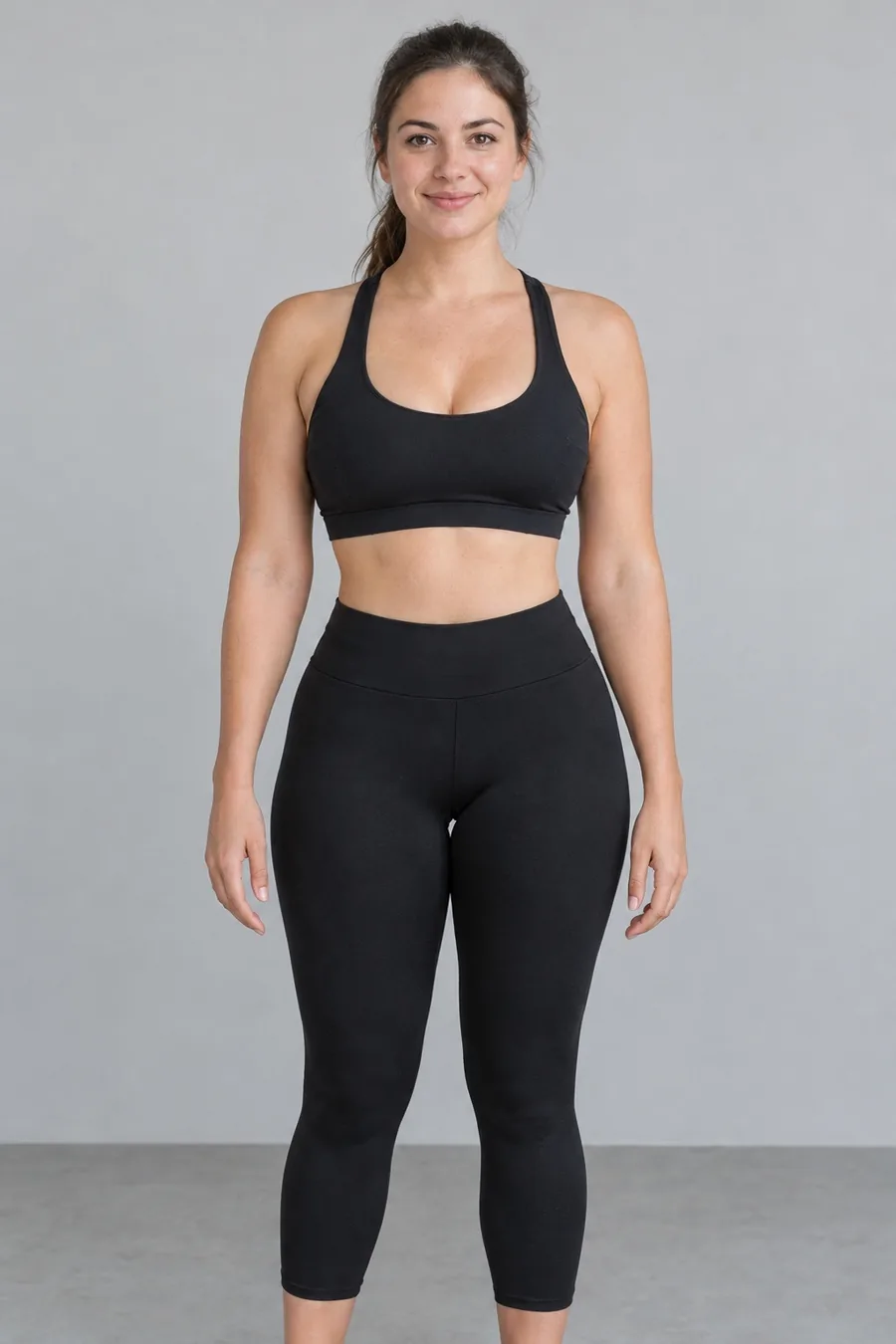
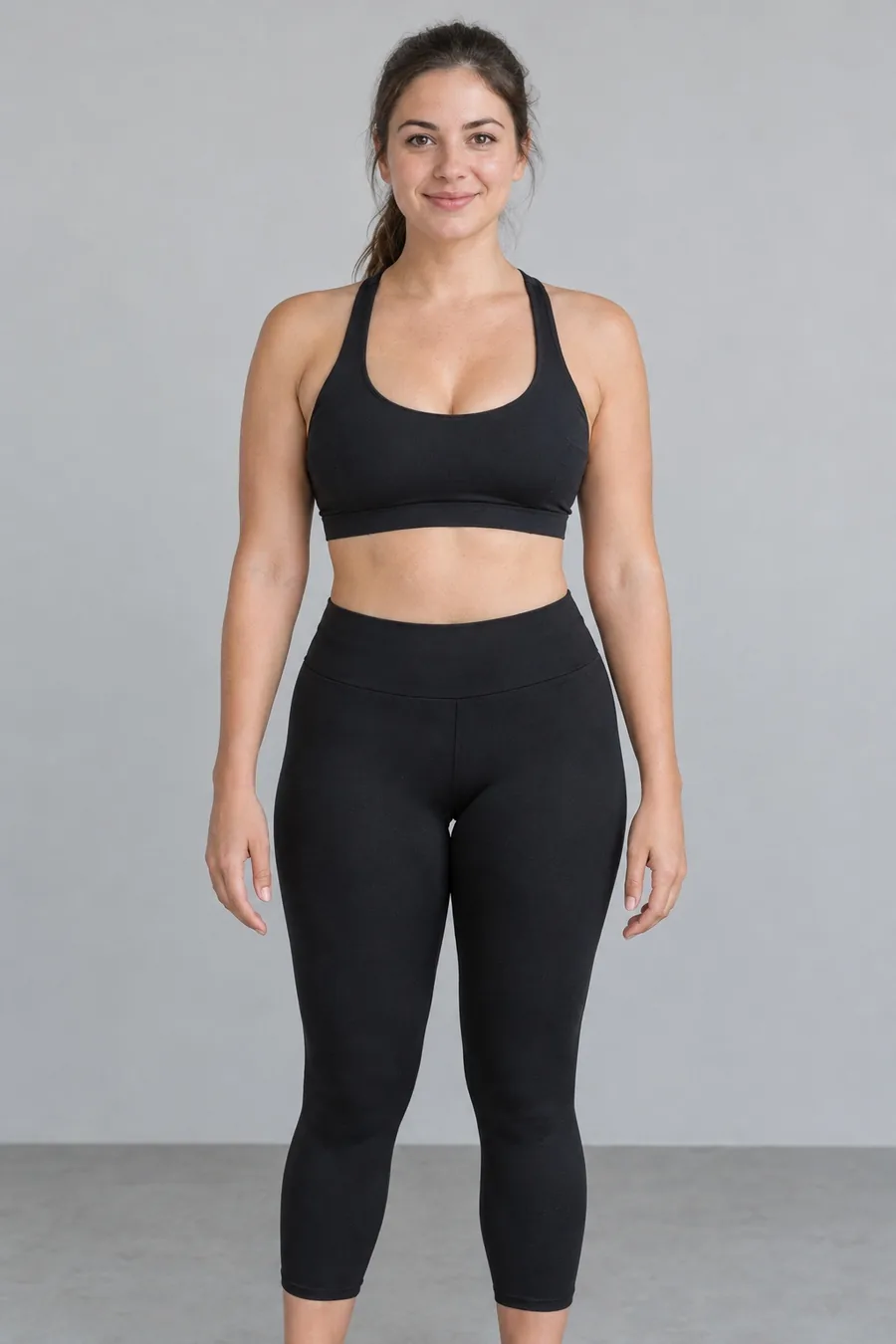
What you need
An iPhone with iOS 17.0 or later, the app Expression Editor - Reshot AI, and a photo where the body is visible. Body Reshape works well on standing, full-length photos with fitted clothes. Editing needs a Premium subscription or a credit pack.
The five sliders
Each area has its own slider. Most go both ways, so you can undo a change by moving back past the middle.
| Area | Slider | What it changes |
|---|---|---|
| Waist | Wider ↔ Slimmer | Width of the waist, inside the area you set |
| Hips | Narrower ↔ Curvier | The line of the hips |
| Legs | Natural → Longer | Leg length, hips to ankles, top to bottom only |
| Arms | Fuller ↔ Slimmer | Upper arms and forearms on both sides |
| Shoulders | Narrower ↔ Broader | Width of the shoulder line |
Why the handles matter
For the waist, hips, shoulders and legs, the app draws the area it is about to change on the photo, with handles on the sides (or the top and bottom for legs). The app places it from the body's pose, but clothes can hide where the body really is. A wide belt, a peplum top or a jacket can put the waist in a different place from where the fabric suggests. Drag the handles until the area sits on the body itself, then move the slider.
Keep it believable
- Move the slider in small steps and compare after each one.
- Look at straight lines next to the body: door frames, tiles, railings, the horizon. If one bends, use the eraser on that part.
- Edit one area at a time. Waist and hips together change the whole outline more than either one alone.
- Zoom out before you save. An edit that looks fine up close can look odd at full size.
Step by step
Open your photo
Download Expression Editor - Reshot AI, open Face Studio and pick a photo from your library.
Choose Body Reshape
Tap Body Reshape. In a group photo, tap the person you want to edit.
Pick an area
Choose waist, hips, legs, arms or shoulders. Guides on the photo show which way it will change.
Set the area
Drag the handles so the area matches the body, not the clothes.
Move the slider
Move it a little at a time and watch the photo, not the slider.
Compare, erase and save
Check the before and after view, paint back any spot with the eraser, then save.
Try it on your own photo
Download Expression Editor - Reshot AI on the App Store.
Questions
Does Body Reshape work on photos I already took?
Yes. It edits any photo in your library, including older photos and screenshots, as long as the body is visible.
Can I undo a reshape?
Yes. Use undo to step back, move the slider back toward the middle, or use the eraser to restore one part of the photo.
Does it change the face too?
No. Body Reshape changes only the area you pick. Face changes are in Face Reshape, a separate tool in the same editor.